



Game info
Dress up, Character creator
Explore Gacha Life character creation, Studio, Skit Maker, Life mode, mini-games and practical anime storytelling ideas.
Gacha Life: create a character with a story in mind
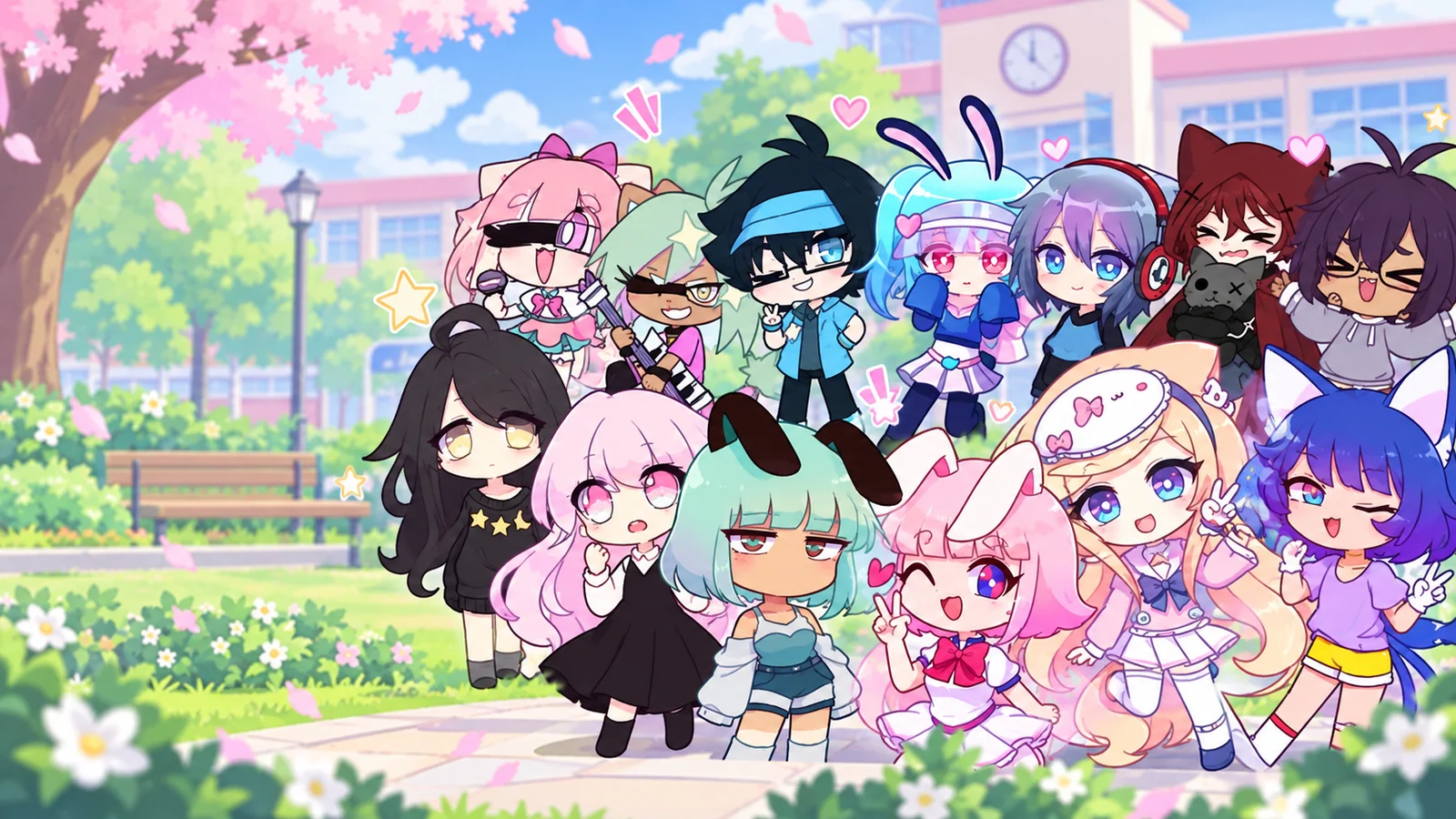
Gacha Life is Lunime's anime character-creation game, combining customisation with Studio scenes, Life mode exploration and mini-games. Hair, expressions, clothes and accessories can suggest who a character is before a line of dialogue is written. Begin with someone you want to create, then decide whether their next activity belongs in a portrait, a short sketch or an exploration session.
The official Gacha Life Google Play listing describes the original game's modes and character tools. A useful starting goal is specific: make two characters who are about to meet, prepare an outfit for a school scene or create the cast for a short skit. The appearance choices now have a purpose, and you can continue into the mode that gives those characters something to do.
Gameplay Overview
Gacha Life combines several activities rather than asking you to chase one universal score. Character customisation creates the cast, Studio provides a place to stage them, the Skit Maker connects scenes and Life mode adds exploration and non-player characters. Mini-games provide another kind of challenge and feed into the gem-and-gift side of the game.

Choose one activity before opening every menu. For a short creative session, finish a character and one Studio panel. For a skit, decide the situation and make the actors needed for it. If you want a score challenge, choose a mini-game and learn its immediate goal. This makes each visit easier to begin because you are completing a task rather than browsing every appearance part without a project.
How to Play Gacha Life
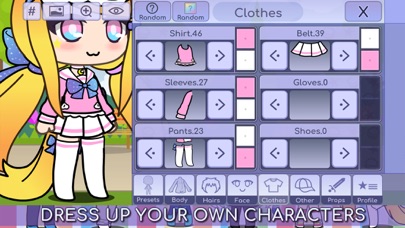
Begin in character customisation and select a character slot for the person you want to make. Choose the hairstyle, outfit and facial parts, then compare the whole figure before adding small accessories. Work through one category at a time so a strong outfit choice does not get lost while you are changing several other parts.
For a first project, make two students who are meeting after class. Give them different silhouettes and expressions, then take the scene idea into Studio: choose a background, place the actors, set their poses and add a brief exchange. You can keep that single panel or continue it through the Skit Maker. Finishing this small sequence gives you experience with both character design and storytelling without needing a large cast.
Controls and Editor Navigation
Gacha Life uses direct menu selection for character editing and scene creation. Select the character you intend to change, choose an appearance category and use the available item and colour options. Keep the active category in mind when moving through a large list so you can return to a hairstyle or outfit you liked.
In Studio, actor selection and scene composition are separate decisions. Choose the person, adjust the pose or expression and then inspect their relationship with the background and other actors. Keep important faces and speech text clear. Before resetting a design or changing an installation, keep a reference of an appearance or scene you want to preserve and use the save methods supported by your platform.
Key Features of Gacha Life
Gacha Life's main creative features connect a character's appearance with the scenes they can take part in. The mobile description lists twenty character slots, a wide selection of appearance parts, poses and backgrounds, plus custom text in Studio. The Skit Maker gives those scenes a sequence rather than leaving them as unrelated pictures.
Use the character slots as a working cast. Keep a recognisable version of each main actor and give supporting characters a distinct role. An outfit, hairstyle or accessory should help you identify who is present when the scene is viewed at its normal size. You can then use the different modes for different goals: Studio for a conversation, Life mode for exploration and a mini-game for a short challenge.
Pro Tips: Choose a Role before Choosing the Details
Write a short situation for the character: they are late for school, preparing for a performance or meeting a new neighbour. A situation creates more useful appearance choices than a broad label alone. The late student might look hurried, while the performer might have a costume that contrasts with their ordinary clothes. You now have a reason to select an expression or accessory.
Avoid trying to explain an entire personality with one symbol. A book does not have to mean that a character is always quiet, and a bright outfit does not require a cheerful expression in every scene. Let the current situation shape the design. This gives you room to make the same person react differently later without losing the visual identity you established.
Hair, Colour and a Readable Silhouette
Look at the outside shape before concentrating on tiny strands or highlights. Short and long hair, a compact and wide shape, or a strong accessory can distinguish two characters even at a small size. If your cast only differs in a tiny detail around the face, those differences may disappear when the figures are placed in a larger scene.
Choose a limited colour relationship for the first pass. Use one main colour, a supporting colour and a small accent, then compare the whole figure. Neighbouring parts need enough contrast to remain separate. If the hair, collar and accessory merge into one dark area, change one large colour before adding another small detail. This produces a clearer improvement than repeatedly adjusting elements that are already difficult to see.
Faces, Expressions and Personality
Choose an expression for a moment rather than treating it as a permanent label. A confident character can look uncertain when receiving unexpected news. A reserved character can show excitement about something important. Compare the eyes, brows and mouth together; changing only one part can produce an emotion you did not intend.
For a two-character scene, decide what each person knows. One may be pleased about a surprise while the other has not understood it yet. Different expressions can communicate that difference before you add text. Keep the rest of the designs steady while testing the reaction so the expression, rather than a complete outfit change, carries the new meaning.
Clothing and Accessories that Tell a Story
Choose the main clothing shape first, then add an accessory with a clear purpose. A bag can suggest a departure, a performance item can explain a costume and an ordinary personal object can connect several scenes. An accessory becomes more useful when the character does something with it in the story you are planning.
Check whether details compete. If the outfit already has a strong pattern, an oversized accessory may draw attention away from the face. Remove one element and compare the result. Keeping an unused idea for another character can strengthen both designs: one remains readable, while the next has a distinctive starting point rather than becoming a copy with different colours.
Turn a Design into a Short Story
In the original game, use Studio to create a readable panel before expanding into the Skit Maker. Choose the background, place the actors, set their poses and expressions, then enter the text each person should say. The official Gacha Life App Store description identifies Studio, custom text, backgrounds and the Skit Maker as features. Keep the text short enough that the speaker and reaction remain the centre of the scene.
A useful three-panel example is a missing bag: first show a student ready to leave, then show the discovery that the bag is missing, and finish with another character returning it. Keep the bag recognisable and change the student's expression between the second and third panels. The same cast, background and prop can communicate the whole sequence through their changing arrangement, which is more effective than filling every panel with new decorations.
Modes in Lunime's Original Gacha Life
The original Gacha Life separates character editing, scene-making and exploration into distinct activities:
- Character customisation uses appearance parts and a collection of twenty character slots, as described in the mobile listing.
- Studio Mode provides poses, backgrounds and custom character text for a scene.
- The Skit Maker combines scenes into a short sketch rather than leaving every panel as an unrelated picture.
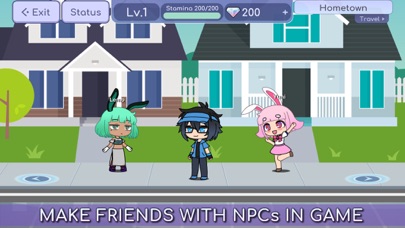
- Life Mode lets a character explore places such as the town and school and meet non-player characters.
- Eight mini-games, including Duck & Dodge and Phantom's Remix, provide ways to earn gems; the collection also includes gifts obtained through Gacha.
Choose the mode that matches your goal. A conversation belongs in Studio or a skit; a gem-earning challenge belongs in a mini-game. For the Windows release, use Lunime's own Gacha Life PC page. The creator identifies it as a demo of the fuller mobile experience and describes taking up to eight characters into its Studio. Use the creator's platform information when planning a PC cast and its Studio scenes.
Advanced Tips: Build a Small Character Collection
Use the character slots as an organised cast rather than filling them with nearly identical experiments. Keep one clearly recognisable version of a main actor, then use another slot for an alternate costume or a supporting character as the project needs them. Record which design belongs to which role before a larger Studio or Skit Maker project makes the list difficult to recognise.
For a school-club story, give the organiser, the performer and the newcomer different silhouettes and a shared accent. Then prepare the appearance or expression needed for the next scene. A small reference sheet with the main colours and identifying accessory is useful when you return to an older project. It helps you keep the same person recognisable while changing a costume, rather than accidentally replacing their identity every time you browse another set of parts.
Save a Reference and Check the Final Image
Use the save or export method supported by your game platform. A screenshot is a useful visual reference, but it is not necessarily an editable character file. Check the result after saving: make sure the face is visible, the important accessory is not cropped and the colours still read clearly at the size you intend to use.
Before resetting a design or changing an installation, keep an additional reference somewhere you can find again. Avoid sharing personal information in a character profile or scene text. If you want to check the original developer and other official releases, use Lunime's website and its official product information.
Similar Games and Creative Routes
Gacha Club offers another Lunime approach to anime character creation and Studio scenes, while Gacha Life 2 is a separate title with its own interface and tools. Compare the creative activity you want: a portrait, an outfit, a multi-character scene or a longer role-playing session. Similar artwork does not necessarily mean the same design workflow.
Within Gacha Life, you can also change creative direction without abandoning a finished cast. Build a new skit around the same people, send a character into Life mode or try a mini-game between scene-making sessions. A completed design is a useful starting point for the next idea rather than something you need to replace every time you want a different activity.
Browser games in this collection
- Anime Fantasy RPG Dress Up — Choose a fantasy heroine and develop a complete costume rather than a face alone. The opening screen offers six character portraits.
- Anime: School Avatar — Build a school-themed anime portrait using a compact illustrated editor. Its opening title leads to a face with separate appearance categories.
- Cute Girl Avatar Maker — Create a small chibi character by assembling individual facial and clothing pieces. The checked browser build opens with its own Cute Girl Avatar Maker title and a portrait-shaped editing area.
- Vlinder Anime Doll Creator — Make an anime doll in the Vlinder editor, with a tall character preview and an illustrated item tray. The checked title, artwork and build address differ from Cute Girl Avatar Maker.
- Anime Avatar - Face Maker — Design a close-up anime portrait rather than a whole town or a battle team. The pink editor presents a large face, separate feature tabs and rows of colour swatches.
- Chibi Doll - Avatar Creator — Build a chibi character in a wider editor with a character list, item categories and a large colour palette. The checked build opened a language picker, then a Create your chibi prompt.
History and Updates
Gacha Life is a Lunime title with mobile releases and a Windows PC download. The current official store and creator pages provide the right starting points for compatibility and platform information. Its combination of character customisation, Studio storytelling, Life mode and mini-games gives players several ways to spend time with the same cast.
When returning to an older project, decide what should remain recognisable before changing parts. Keep the main silhouette, colours or accessory, then develop one feature at a time. A character can change their costume for a new skit without losing the identity established in the earlier scene. This gives a growing collection continuity and makes older work useful in new projects.
Make Something You Want to Keep
Start Gacha Life with one concrete goal: a character for a scene, two contrasting friends or a short Skit Maker exchange. Build the large shapes, choose expressions that fit the situation and use only the details that support the idea. A recognisable actor is a stronger result than a design filled with every interesting accessory.
Keep a reference, give the character a situation and decide what happens next. You can expand the cast, create another Studio scene or take a break with a mini-game. Each route grows from a finished task, making the next visit easier to begin than another random search through the appearance menus.
Frequently asked questions
What can I do in Gacha Life?
Create anime-style characters, arrange Studio scenes, connect scenes through the Skit Maker, explore Life mode and play mini-games. Choose the mode that matches the task you want to complete.
How do I begin creating a Gacha Life character?
Select a character slot, choose the main hairstyle and outfit, then adjust facial parts and accessories. Compare the complete figure before making several other changes at once.
How do I control character editing and Studio?
Use the menus to select the actor and appearance category you intend to change. In Studio, choose the character before adjusting a pose, expression or position, and keep faces and dialogue readable.
How many character slots does Gacha Life have?
The official mobile description lists twenty character slots. Use the slots as an organised cast, keeping recognisable main actors and clearly labelled alternate designs.
What is Studio used for?
Studio combines characters, poses, backgrounds and custom text into scenes. The Skit Maker connects multiple scenes into a short sketch.
What can I do in Life mode and mini-games?
Life mode lets you explore areas and meet non-player characters. The official game also lists eight mini-games, including Duck & Dodge and Phantom's Remix, and a gem-and-gift collection system.
What does Lunime say about Gacha Life PC?
Lunime identifies the Windows download as a demo and describes taking up to eight characters into its Studio. Check the creator's platform information when planning a PC project.
How can I preserve a character design?
Use the save or export method supported by your platform and keep a screenshot as a visual reference. A screenshot records the appearance but is not necessarily an editable character file.


Good game? Tell us.0
Share a tip, celebrate a high score, or tell us what you think. Keep it friendly.